AI Assistant
The AI Query Assistant lets you generate SQL queries from natural language questions.
Simply describe what you want to know about your data, and the assistant writes the SQL for you -
taking the current database schema into account.
The assistant is integrated into the SQL Console of the Data Browser.
Open the SQL Console (Ctrl+Enter from any table window, or via the menu) and look for the
"AI Assistant" button in the toolbar.
|
⚠ AI-generated SQL is never executed automatically.
Every query produced by the assistant - in any mode - is placed into the
SQL Console for your review first. You decide when and whether to run it.
|

Conversation Mode
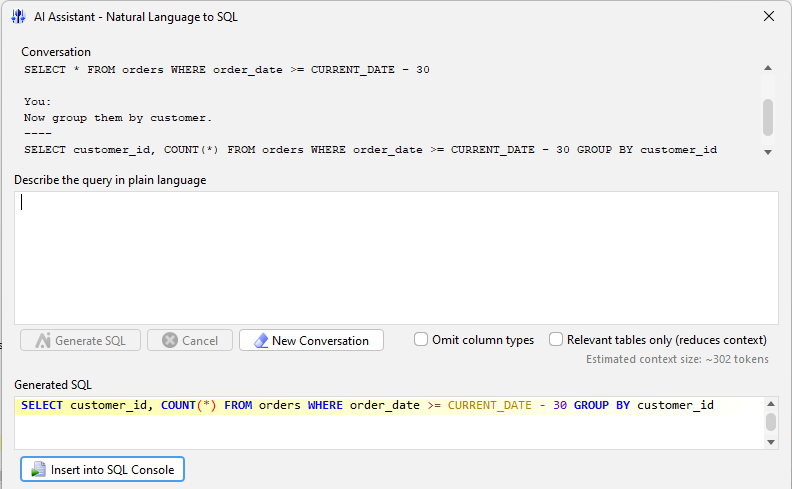
The AI Assistant works as an interactive dialog: you type a question in natural language,
the assistant generates the SQL, and you can follow up with further questions or refinements
- all within the same dialog window.
Each exchange is kept as context so the assistant understands follow-up questions
that refer to previous ones.
You can refine a query iteratively:
“Show all orders placed in the last 30 days.”
→ SELECT * FROM orders WHERE order_date >= CURRENT_DATE - 30
“Now group them by customer.”
→ SELECT customer_id, COUNT(*) FROM orders WHERE order_date >= CURRENT_DATE - 30 GROUP BY customer_id
Silent Mode
Silent mode is a deep integration of the AI assistant into the SQL Console workflow.
Every SQL statement generated by the AI is prefixed with a comment that records the
original natural language question:
/* AI:
   Show all orders placed in the last 30 days
 */
SELECT * FROM orders WHERE order_date >= CURRENT_DATE - 30
When the cursor is inside such a statement, the AI Assistant (Silent) action
becomes available. It re-generates the SQL directly in the editor - without opening
the dialog. A typical use is to edit the
/* AI: ... */ comment to refine or extend the question and then
let the AI update the query in place.
As with all other modes, the regenerated statement is placed into the SQL Console for review
and is never executed automatically. Inspect it, then press Ctrl+Enter to run it.
Trigger silent mode via:
- Right-click context menu → AI Assistant (Silent)
- Keyboard shortcut Ctrl+Shift+S
The menu item is only enabled when the current statement carries an /* AI: ... */
header.
SQL Advisor
The SQL Advisor is the second tab in the AI Assistant dialog.
Where the Generate SQL tab creates queries from scratch,
the Advisor works with an existing query - paste it in and ask the AI to
explain, improve, or rewrite it.
Open the SQL Advisor by switching to the SQL Advisor tab in the AI Assistant dialog.
The current SQL Console statement is pre-loaded automatically when you open the dialog
from the toolbar or context menu.
Whenever you generate a query in the Generate SQL tab, the Advisor tab
is updated automatically so you can switch over and refine the result straight away.
Suggestions Menu
A built-in dropdown provides one-click prompts for the most common advisor tasks -
no typing required:
- Explain this query
- Add comments to explain the query
- Make this query more readable
- Find potential performance issues / Optimize this query for performance
- What indexes would help this query?
- Rewrite using CTEs / Extract repeated expressions as CTEs
- Convert subqueries to joins / Rewrite using window functions
- Simplify redundant conditions / Check for NULL handling issues
Result View
The response is shown as a side-by-side split view:
- Left - SQL: the AI-revised query, ready to insert into the SQL Console with
the Insert into SQL Console button.
- Right - Answer: the AI’s explanation, rendered as formatted text.
Inline Diff
The Show Diff toggle button overlays a live diff directly on the SQL area,
highlighting exactly what the AI changed: removed lines appear in red, added lines in green.
Toggle it on or off at any time; the setting is remembered across sessions.
Supported AI Providers
The assistant works with any of the following AI backends:
| Anthropic |
Claude models via the Anthropic API. Requires an API key from
console.anthropic.com.
Default model: claude-haiku-4-5-20251001. |
| OpenAI-compatible |
OpenAI and any API that follows the OpenAI chat-completions format
(Azure OpenAI, Groq, etc.). Requires an API key.
Default model: gpt-4o-mini. |
| OpenRouter |
Access hundreds of models through a single endpoint at
openrouter.ai.
Free models are available without payment.
Default model: google/gemma-3-27b-it.
→ Example Setup |
| Ollama |
Run models locally on your own machine - no API key required and no data
leaves your system. Requires a running
Ollama instance.
Default model: llama3.2. |
Configuration
The AI provider settings are shown at the bottom of the AI Assistant dialog.
Open the dialog via Edit → AI Assistant, or via the AI Assistant button
in the SQL Console toolbar. Configure:
- Provider - select Anthropic, OpenAI-compatible, OpenRouter, or Ollama.
- API URL - pre-filled with the provider default; change only for custom endpoints
(e.g. Azure, a local proxy, or a self-hosted OpenRouter mirror).
- API Key - your secret key for the chosen provider. Not required for Ollama.
- Model - the model name to use. Refer to your provider’s documentation for
available model identifiers.
- Max Tokens - the maximum number of tokens in the generated response
(default: 8192).
Smart Table Selection
For databases with many tables, sending the full schema to the AI in every request can be slow
and expensive. The Smart Table Selection mode (checkbox "Relevant tables only") solves this with a two-step approach:
- A lightweight first pass sends only the list of table names to the AI, which returns the
subset of tables relevant to the question.
- Only the schema of those selected tables is included in the main request that generates
the SQL.
Smart Table Selection activates automatically when the schema exceeds a threshold number of
tables. It can also be enabled or disabled explicitly in the settings.
Custom System Prompt
The system prompt lets you set standing instructions that are sent to the AI before every
conversation. Click the System Prompt… button at the bottom of the AI Assistant
dialog to edit it.
It is a good place to establish general rules for SQL generation, for example:
- Aliases for complex expressions - instruct the AI to always assign
a meaningful column alias to calculated fields, e.g.
SUM(amount) AS total_amount instead of an unnamed expression.
- Preferred SQL dialect or syntax conventions for your database.
- Formatting rules such as uppercase keywords or a specific indentation style.
- Database-specific constraints or naming conventions the AI should respect.
AI Subsetting Assistant
Describe in natural language what data you want to subset - the assistant generates
a complete subsetting model ready to apply to the editor.
Open the assistant by clicking the AI button in the Extraction Model Editor toolbar.
|
⚠ Proposals are never applied automatically.
The generated extraction model is shown for review first.
Click Apply to Editor to accept it. The change can be undone at any time with Ctrl+Z.
|
Writing a Good Request
Plain English works well. A few tips for better results:
- Name the main entity first -
“All orders for customer 42…”
- Explicitly name what to exclude -
“…but without payment history.”
Without an explicit exclusion, the AI may include related tables.
- Name what to include if you want specific related data -
“…with order items and products.”
The Proposal
After generation the dialog shows:
- Subject table and condition - the starting point of the extraction.
- Restrictions - per-association decisions: include all rows,
include only rows matching a filter condition, or exclude the association entirely.
- Explanation - a plain-text summary of what is extracted and what is excluded.
Read this to quickly verify that the AI understood your request correctly.
Click Apply to Editor to apply the proposal, or close the dialog to discard it.
Options
Reduced Schema
For databases with many tables, sending the full schema to the AI can be slow.
Enable Reduced Schema to use a two-pass approach:
- A lightweight first pass sends only the list of table names; the AI identifies
the best subject table.
- A second pass builds a reduced schema starting from that subject table,
traversing connected tables in breadth-first order up to the configured limit
(default: all tables in the schema).
Recommended for schemas with more than a few dozen tables.
Omit Column Types
Enable Omit Column Types to send the schema without column type information.
Table names, column names, primary keys, and foreign keys are still included.
This further reduces the context size for very large schemas.
System Prompts
Click System Prompts… to customize the instructions sent to the AI.
Two separate prompts can be edited:
- Extraction Model Prompt - main instructions for generating the extraction model.
- Subject Table Detection (1st pass) - instructions for the lightweight
first pass that identifies the subject table (used only when Reduced Schema is enabled).
Both prompts have a Reset to Default button and are persisted across sessions.
|